
AI agents now run inside chat tools, scheduled jobs and coding agents such as Claude Code and Codex, and many of them read company data and call company tools. AI agent governance is the set of rules that decides who can use each agent, what it can see and do, how much it may spend, and how you check its work afterward.
This guide works through the six questions an enterprise team should settle before agents reach production data, and ends with a rollout checklist. It is written for the data and growth leads who run agents and the IT and security staff who sign off on them. The numbers in the examples are illustrative.
What AI agent governance has to answer
Give each question an owner. The table suggests a typical one, from platform admins to IT and security.
| Question | What to decide | Typical owner |
|---|---|---|
| Scope | Who can use, copy or edit each agent | Platform admins |
| Data access | Which rows and columns an agent can read | Data owners |
| Approvals | Which actions wait for a person | Team leads |
| Tools and Skills | Which connections and work methods an agent can call | Platform admins |
| Spend | How much each person or team can use per day, week or month | Finance with platform admins |
| Records | What gets logged and who reviews it | IT and security |
A weekly spend limit means little if every analyst can pick the priciest model for routine summaries, and a data rule is weak if an agent runs under a wider identity than the person who asked. Settle them in the order below, from scope to records.
Decide who can use and edit each agent
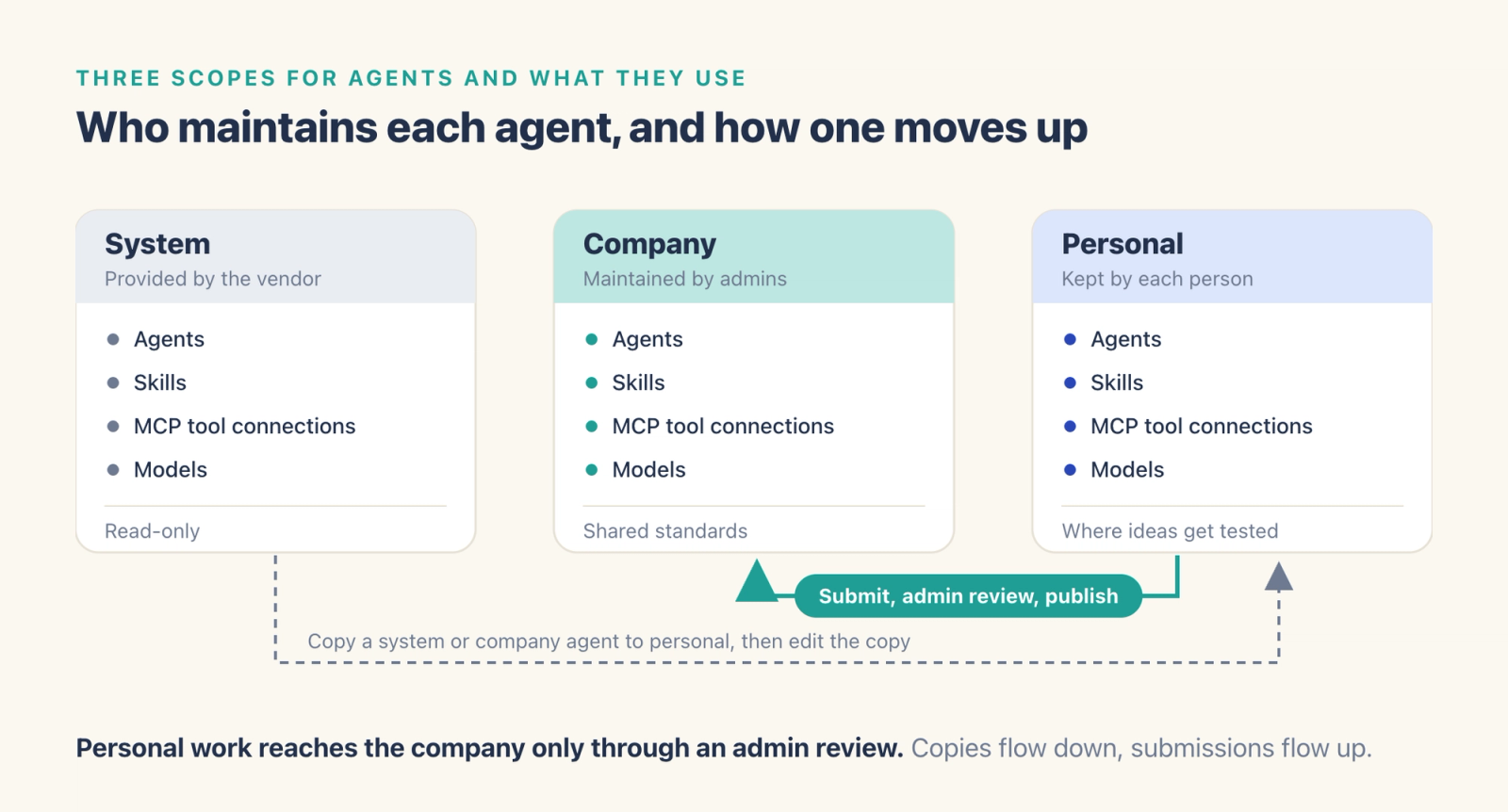
This guide uses three agent scopes. System agents come from the vendor and stay read-only. Company agents are shared standards, such as a weekly retention report agent for every Live Ops team, and a small group of admins maintains them. Personal agents belong to the person who built them, and they are where new ideas get tested. Our guide to building a custom AI agent covers what goes into one before it moves up.
Apply the same three scopes to everything an agent uses, including Skills (reusable work methods), tool connections over the Model Context Protocol (MCP) and models. Keep use and edit as separate rights. Every analyst may need the company retention agent, while only two or three admins should be able to change its instructions, since a shared edit can affect every team that uses the agent.
Review an agent before it changes scope. A person who wants to change a company agent copies it into a personal agent and edits the copy. A person who wants the whole company to use a personal agent submits it, and an admin reviews the instructions, model and tools before it goes live. Personal tool connections and personal model keys should stay behind when an agent moves up, since they carry one person's credentials.
Let agents read only what the person can read
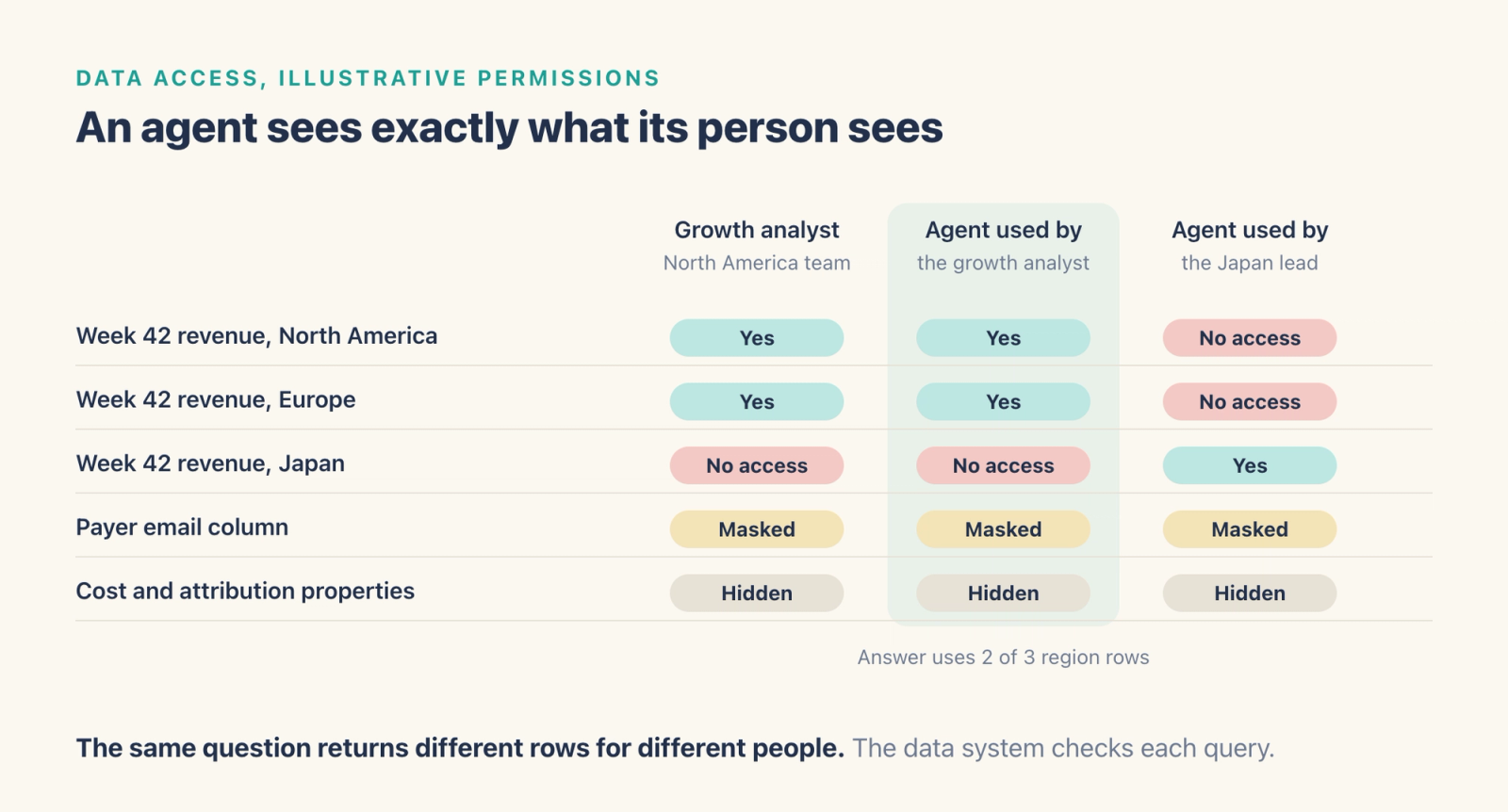
The safest default is that an agent works with the permissions of the person using it, and the data system checks those permissions on every query. A separate service account with wide read access is the pattern to avoid, because anyone who can use the agent could reach data available through that account.
Row-level and column-level rules still apply under this model. Suppose, as an illustrative example, a growth analyst on the North America team can see weekly revenue rows for North America and Europe, has no access to Japan, and sees the payer email column masked. For example, ask the agent for week 42 revenue by region, and the answer draws on the 2 region rows that analyst can see. The same question from the Japan lead returns a different answer, which is the intended behavior.
Scheduled jobs need one extra decision. A job that runs every Monday at 9 AM has nobody at the keyboard, so pick whose identity it runs under and write that down. A common design runs a scheduled job as the person who created it, which means a job built by a senior analyst keeps that analyst's access even when a junior colleague triggers it.
Choose which actions need a person
Sort agent actions into three tiers, each with its own rule. Reads, such as a query or a summary, can run freely within the person's data permissions. Writes change something other people rely on, such as a dashboard, an audience or a push message, so the agent should propose a plan with its scope of impact and wait for the person to confirm. High-risk writes, such as deleting an asset or ending an experiment during a Live Ops event, get a second confirmation.
| Tier | Examples | Rule |
|---|---|---|
| Read | Query a metric, summarize a report, draft a weekly note | Runs within the person's data permissions |
| Write | Create a dashboard, build an audience, send a push | The agent shows a plan and runs it once the person confirms |
| High-risk write | Delete an asset, end an experiment, change live traffic | A second confirmation, with a preview first where the tool offers one |
Any flag or setting that skips a confirmation needs its own rule, such as allowing it only in a script with a named owner, a confirmed scope of impact and a rollback plan. Approvals apply to the agents themselves as well. A personal agent that becomes a company standard should pass an admin review, the same way a new dashboard metric passes a data owner. Write down who approves, what they check (instructions, model, tools and data sources) and how long a submission may wait.
Limit the tools and Skills an agent can call
Tools are where an agent reaches outside the analytics system, into team chat, documents, ad accounts or a ticket queue. Where a tool supports it, each connection should carry the credentials of the person who uses it, and any shared service account should be documented and kept narrow. A shared company connection can hold the server address and settings for everyone while each person still signs in with their own account, so the destination tool applies that person's permissions. Check how each tool labels what an agent posts, since some show the app's name in place of the person's.
Check each tool against the agent's stated purpose and remove the ones its tasks never need. A reporting agent needs query tools and a document tool, and it has little reason to hold a tool that sends pushes to players. Skills deserve the same care, because a Skill can include scripts, and those scripts should run in an isolated environment that admins maintain. Treat text that comes back from documents and tool results as data, since a planted instruction can try to steer the agent, and a short tool list limits what it can reach. Keep tokens and passwords out of agent conversations.
Set spend and usage limits per person and team
Agent spend grows as more people use agents and as tasks get longer, so set limits in layers. A company quota caps the monthly total. Rules for each person or team cap every user over a day, week or month and list the models that user may pick. A balance alert warns admins before funds run low.
For example, a company might set a monthly quota of $10,000, give each of 6 analysts on the data team a weekly limit of $250 with 2 allowed models, and turn on an alert when the balance falls under $2,000. The per-person limit caps individual use, the company quota caps total monthly use, and the alert gives finance time to respond.
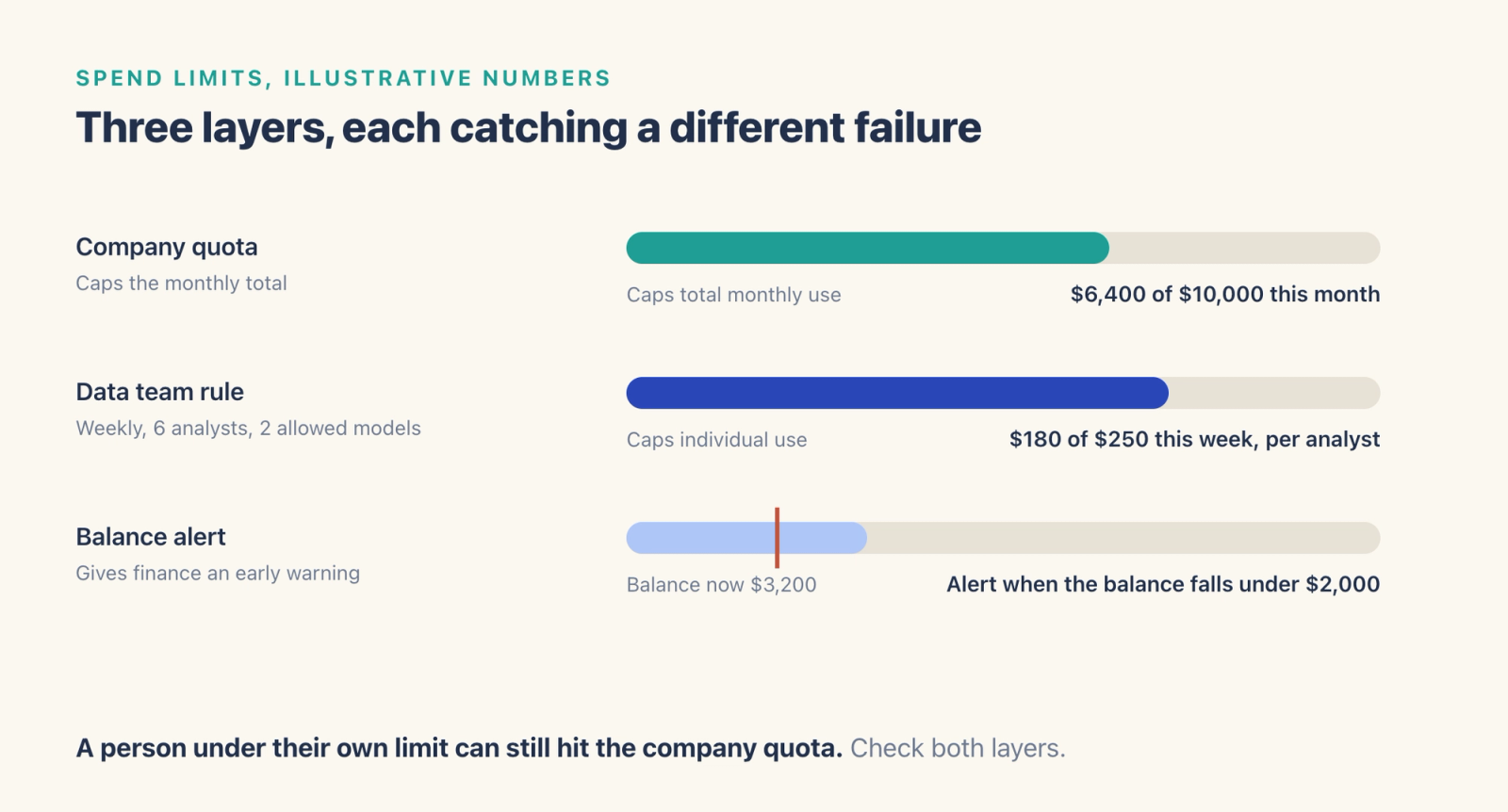
A person under their own limit can still be blocked once the company pool runs out, so check both before telling someone to wait for next week. Removing a model from the allowed list can also stop every agent built on that model, so check which agents use it first.
Keep a record of what agents ran
A useful review covers three records. Usage by person, model and product shows where spend comes from. Tool call records show who called which connection or command line tool and whether each call succeeded. Run history for scheduled jobs should show the time, duration, status and attempts of every run, with a link to its conversation.
Schedule a monthly review. Break last month's usage down by person and model, export the details as a CSV file, compare them with the limits, then adjust next month's rules and allowed models. Look at failed tool calls too, since a cluster of failures often points to an expired sign-in or a permission change upstream.
A rollout checklist for company agents
Start with one pilot team, such as the Live Ops analysts, and finish steps 1 to 7 before the company-wide expansion in step 8.
| Step | What to set | Done when |
|---|---|---|
| 1. Members | Turn agent access on for the pilot group only | Each pilot member can start a conversation |
| 2. Roles | Name the admins who maintain company agents and the owner of each team space | Every company agent has a named maintainer |
| 3. Data | Confirm row and column rules for each pilot member | A test question returns only the rows each person can see |
| 4. Tools | List the connections and Skills each agent may call | Each tool on the list has a stated reason |
| 5. Approvals | Writes run once the person confirms a plan, and deletes and other high-risk actions ask a second time | A test write, a test delete and one other high-risk action each follow that sequence |
| 6. Spend | Set the company quota, rules per person and a balance alert | The pilot's first week stays inside the limits |
| 7. Records | Schedule the monthly usage review and name who reads tool call records | The first review is on the calendar |
| 8. Expand | Publish the pilot's best agent to the company after an admin review | Other teams use the published version |
Remove access promptly when people change teams or leave, and review the list of admins every quarter.
How to run it in Agentic Engine
In Agentic Engine, the Capability Center manages Agents, Skills, MCP, knowledge bases and models, and System Admin covers members, usage, cost limits and sandboxes. Through ae-cli, the command line tool, agents in Claude Code or Codex stay within the person's account and project permissions.
Scopes. Agents, Skills, MCP tool connections and models can each be System, Company or Personal. Company Agents are maintained by admins with company resource management permission, which covers System Admins and Agent Admins. Anyone who wants to customize a public Agent copies it as a personal Agent first. To publish a personal Agent for company use, its owner selects Submit to Company, and an admin reviews and publishes it in Approval & Sharing. Personal MCPs and fixed personal models block sharing and company publishing. Each shared space has an Owner, space admins and members, so a team can run its own space without company-wide rights, and personal capabilities stay out of a shared space's public configuration.
Data access. Agents and the command line tool work within the person's own project permissions, down to rows and columns, and the server makes the final check. Data permissions cover which events and properties are visible, a data range filtered by property rules, and masking of sensitive fields in detail lists. Automations in a shared space run with the creator's identity, and the actual operator of each manual run is recorded.
Approvals. From the command line, you can ask the agent to show its plan first, and it runs the change once you confirm. Deletions and other high-risk changes ask for a second confirmation. The --dry-run flag previews a command without running it. The --yes flag skips the interactive confirmation for high-risk writes, and the docs advise using it only after you have confirmed the scope of impact.
Tools. A company MCP shares the service configuration, and each person still completes their own sign-in. Skill scripts run in sandboxes, isolated runtime environments that admins maintain for each person and each shared space.
Spend. In System Admin, Cost Control sets a monthly Company Quota as an amount or a token limit, and User Rules set a daily, weekly or monthly quota with allowed models for the users assigned. A Balance Alert shows a warning when the account balance falls below the amount you set. Disabling a member in Agent Members stops that member from using the Agent system.
Records. System Usage groups LLM usage by user, model, product or date and exports CSV files, and the Agent tool calls view shows who called MCP or CLI and whether each call succeeded. Automations keep a Run History with run time, duration, status and attempts, plus a link to each run's conversation, and each Agent Team run keeps a complete execution log. A security audit project that records who accessed or changed data, when and how, can be set up on request. Teams can also self-host Agentic Engine, with analytics, agents, workspaces and knowledge bases running in their own cloud account or on their own servers.
Frequently asked questions
What is AI agent governance?
It is the set of rules that decides who can use and edit each AI agent, which data it can read, which actions need a person's approval, which tools it can call, how much it can spend, and what gets recorded for review by IT and security.
Can an AI agent see more data than the person using it?
An agent sees what its run identity can see. In interactive use, that identity should be the person asking, with the data system checking each query. For scheduled and shared jobs, write down whose identity each one runs under and who can trigger it.
Which agent actions should need human approval?
Writes that change what other people rely on, such as dashboards, audiences and push messages, should wait for the person to confirm a plan. Deletes and other high-risk actions should ask a second time.
How do you set spend limits for enterprise AI agents?
Use layers. A monthly company quota caps the total, rules for each person or team cap every user per day, week or month and list the allowed models, and a balance alert warns admins early.
Where to go next
To see where agents sit in the wider platform, read the core pillars of Agentic Engine, and for what agents do with product data, see what agentic analytics means. If user data must stay in systems you control, read our guide to self-hosted data security. Before you widen the rollout, add data quality monitoring so agents work from data your teams trust.