

Event tracking records the product actions you choose to track as events, each with the properties you define. In this guide you take one question from plan to funnel in four steps: write the tracking plan, instrument the events, verify the data, then analyze it. None of the four needs SQL.
Before you begin
- A ThinkingAI project. You need its App ID and receiver URL (
appIdandserverUrlin the SDK), both shown on the project management page. - A web app you can deploy to. Staging is fine.
- One question you want the data to answer.
Start with one question
Start with one question and define only the events needed to answer it.
This guide follows one worked example: a subscription web app that wants to know where trial users drop off between sign-up and their first payment. In this app, a new user signs up, completes an onboarding checklist, and the 14-day trial starts when onboarding is done. The question needs four events. Your own lifecycle may need a different set or a different order.
Step 1: Write the tracking plan
A tracking plan lists the events you will send, what triggers each one, and the properties attached to each. In this example, event names use snake_case and the past tense, so each name refers to a completed action. Pick one convention and hold to it, because every later step matches on these names.
For the trial-to-payment question, the plan has four events:
signed_up: the account is created successfully. Callta.login()first, then send this event, so the whole funnel counts the same user ID. Properties:signup_source(string),plan_selected(string).onboarding_completed: the user finishes the onboarding checklist. Properties:steps_completed(number),time_to_complete_seconds(number).trial_started: the 14-day trial begins. Properties:plan(string),trial_days(number).subscription_purchased: the first payment clears. Properties:plan(string),amount(number),currency(string).
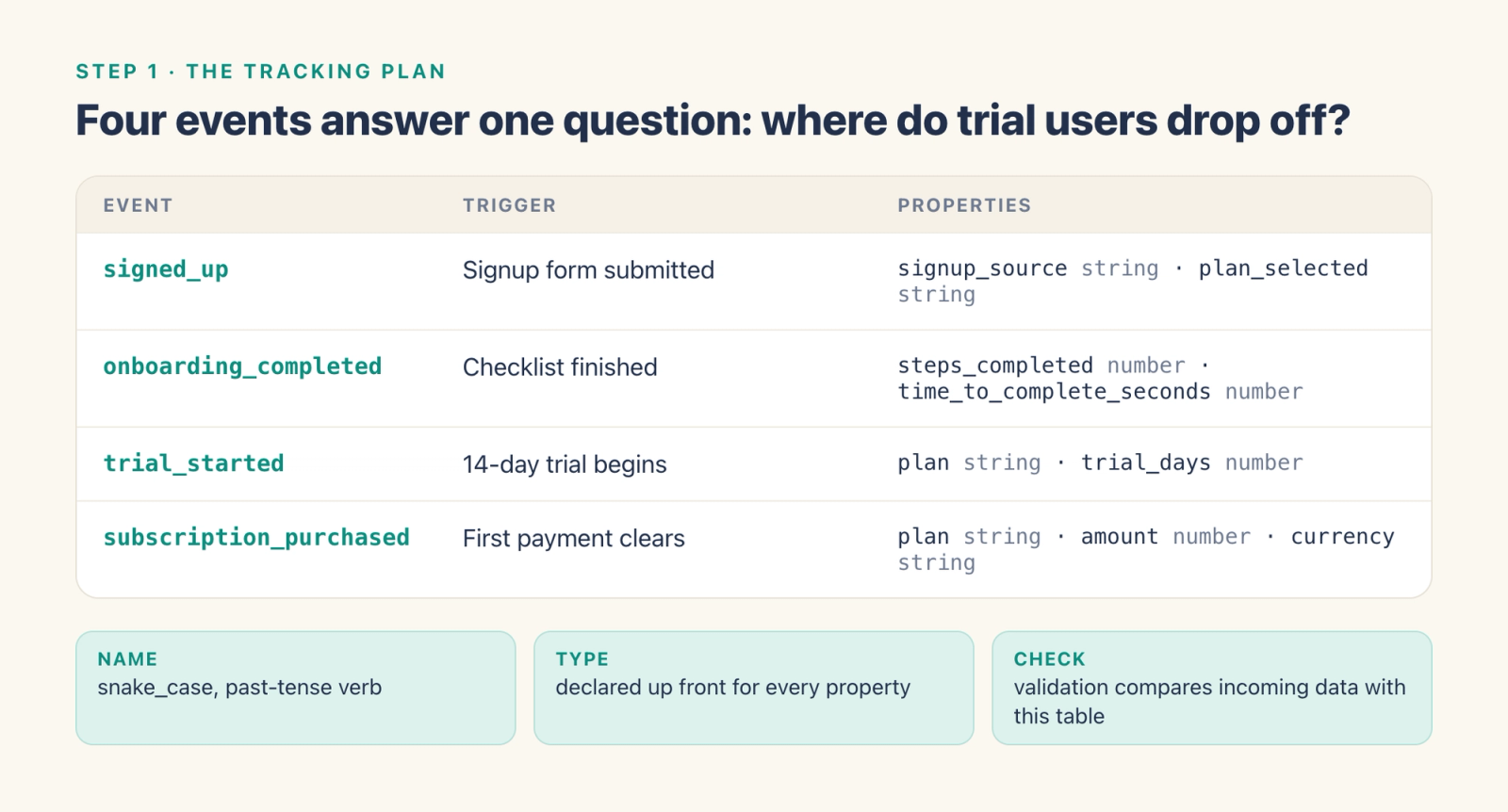
You have two ways to produce this plan. Both end the same way: a person reviews it before it is uploaded.
Path A, describe it. In the Agentic Engine, open the Tracking Plan Generator skill and describe what you want to measure in plain language, for example "track sign-up, onboarding completion, trial start and first payment, with plan and amount on the purchase event." It drafts the plan. Review every event, trigger, property name and property type, correct the draft, approve it, and upload the approved version to the project.
Path B, work from the CLI. Run ae-cli tracking plan list-templates, fill the template that fits, and have a person review it. Then import it; the import uploads the plan to the project:
ae-cli tracking plan import-excel --input-file trial-funnel.xlsxAfter the upload, run ae-cli tracking plan get and check that the hosted plan matches the version you reviewed.
Once the plan is uploaded, the project's data processing rules are set from it, so data that breaks the plan can be stopped at the entry point before it reaches a report. Step 3 also checks incoming data against this uploaded plan.
Step 2: Instrument the events
Install the web SDK. At the time of writing, the SDK documentation lists version 2.5.1, about 58 KB.
npm install thinkingdata-browser --saveInitialize it once, near the top of your app, then send each planned event when it happens:
import ta from "thinkingdata-browser";
ta.init({ appId: "APP_ID", serverUrl: "https://YOUR_SERVER_URL" });
ta.login("user_123");            // after sign-in, sets the account ID
ta.track("trial_started", { plan: "pro", trial_days: 14 });
This example sends only the four planned events, each with an explicit ta.track() call.
Before a user logs in, the SDK identifies them with a random distinct ID that it stores locally. Call ta.login() after sign-in to set the account ID. Read the SDK's user identification rules if you need to connect activity from before and after login, and check which ID your test events carry in step 3.
Send subscription_purchased from your server once your payment system confirms the first payment. Include the same account ID you passed to ta.login(), so the purchase joins the other three steps, and have your application send the event once per first payment. ThinkingAI provides server SDKs for 11 back-end languages.
Step 3: Verify before you trust it
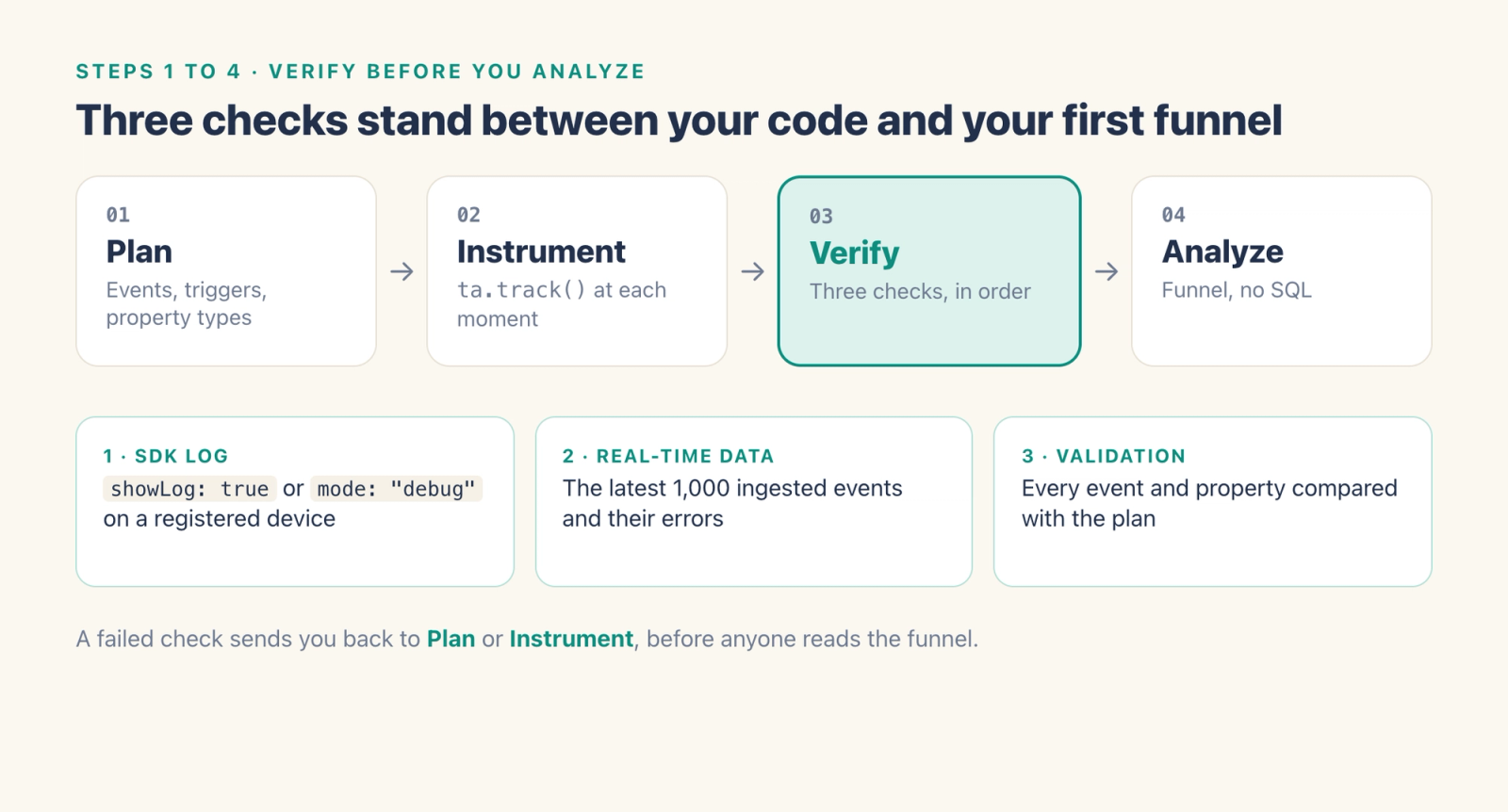
Verify the incoming events before you build the funnel. Run these three checks in order.
Check one, during integration. Add showLog: true to your init config and read the SDK logs in the browser console. For a stricter check, set mode: "debug": the SDK then reports each data item individually and prints logs and anomalies for any item with a problem. Debug mode only takes effect on devices whose IDs you have added under Debugger on the Tracking Management page. Use debug mode during integration only. According to the SDK documentation, it may undermine data quality and stability in production.
Check two, the real-time data page. It shows the last 1,000 ingested rows and their error statistics. If trial_started does not appear after you trigger it, check the event call, the App ID, the receiver URL, the network request and the selected project before you build anything on top of it.
Check three, run validation against the plan. Start it in the product, or from the CLI:
ae-cli tracking check runValidation checks events and custom properties against the plan. It reports events that are not in the plan, custom properties the plan does not list, planned custom properties that are missing, type mismatches, and null rates above the threshold you configure.
Step 4: Answer the question without SQL
With verified events, the question from the start becomes a funnel:
signed_up → onboarding_completed → trial_started → subscription_purchased
Build it in funnel analysis and set the conversion window, which can be anywhere from 1 minute to 180 days. The default limit is 30 steps, and this funnel needs four. Read the conversion between each pair of steps to see where trial users leave.
You can also ask the Analytics Agent in plain English, for example "Where do trial users drop off before paying?" Before you share the answer, check the events, their order, the user ID it counted by and the conversion window it used. For a trend, such as trial starts per week, event analysis charts the count directly. The SQL workbench covers the long tail, such as logic too specific for a standard model, and nothing in this guide needed it.
Limitations
An agent-drafted tracking plan is a draft. A person owns the version that gets uploaded, and that person should read every property type before confirming it.
Debug mode is for integration. Turn it off before release.
If you turn on autotracking (pageView or pageClick in the init config), add the ta_pageview and ta_page_click events to the plan first, or validation will report them as events outside the plan.
Settle event names in step 1. If you do change a name later, a virtual event can combine the old and new events in analysis without re-instrumenting.